Introduction
Let's discover AnimationCPU in less than 5 minutes.
Getting Started
Let’s launch the Animation CPU Game Changer app and you’ll see the magical console!
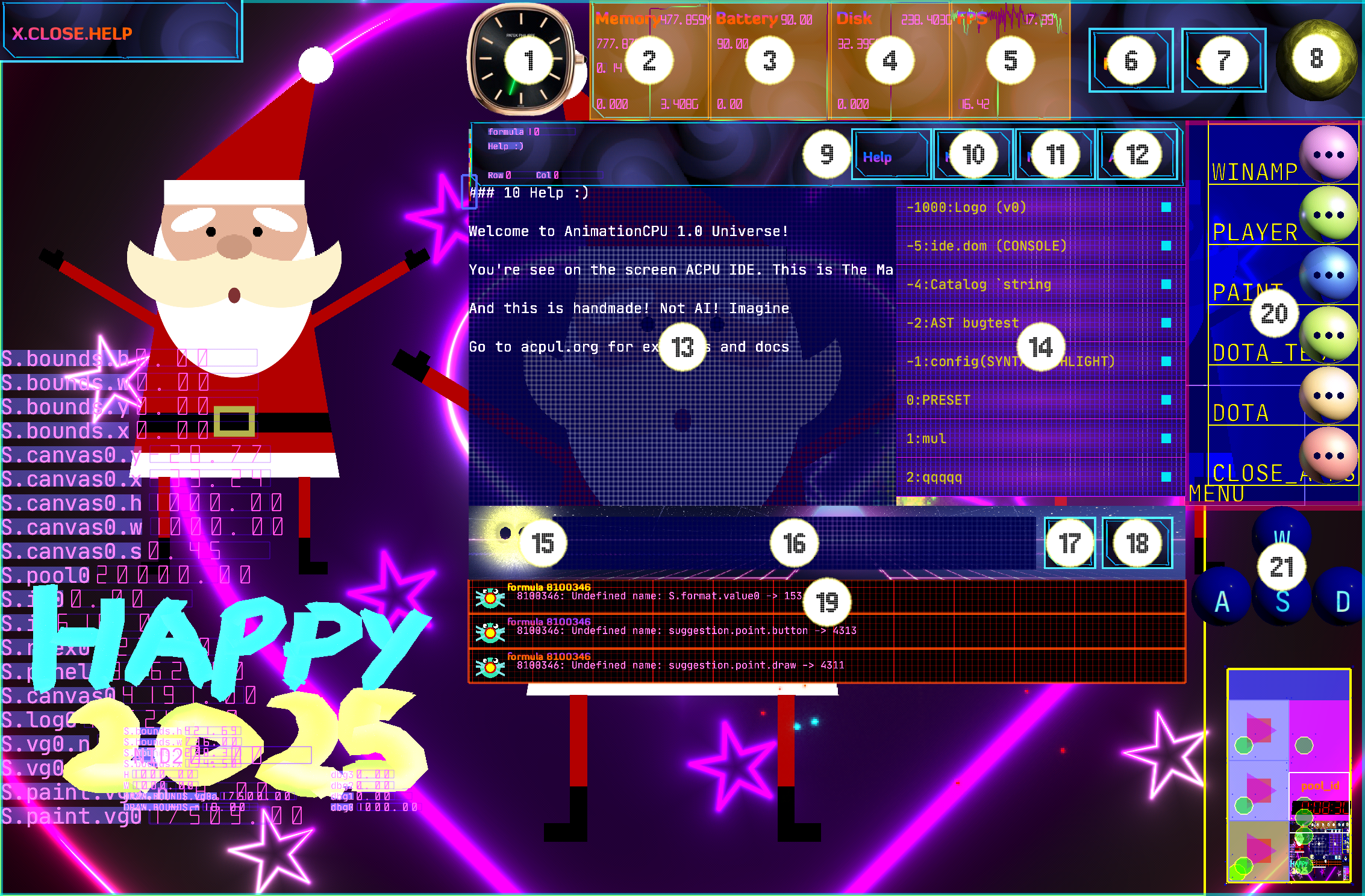
Main panel
Main Panel contains widgets like Clock and Memory, and control buttons Reset, Save and Open Console.

1. Clock widget
Just a clock. Show current time. Let push on the widget and you will see demo design widgets: Clock, Pyramid and Random Graph. You can add or remove a widget changing os.main.panel.clockbn formula
2. Memory widget
The graph of system memory usage. The usage memory is important for reliability of your game. Lower memory usage is better. The numbers highlights the memory usage details: memory.used, memory.free, memory.ratio1 and memory.total, see os.monitor.view.v2 formula
3. Battery widget
Just a graph with current battery levels in %. See os.monitor.view.v2 formula to edit
4. Disk widget
Show disk usage and size. The same os.monitor.view.v2 formula
5. FPS widget
Show frames per second (FPS) graph. See os.monitor.view.v2 formula
6. Reset button
Reset the system. Press it to restart the system to Boot state. See Booting Animation CPU
7. Save button
Save formulas. Write all formulas to disk. See Formulas storage
8. Open console button
Toggle console of IDE
Console panel
Control Panel contains an info widgets with Formula Id and Formula Name, and Editor Cursor Row and Col, and buttons Help, Keyboard, New Formula and Apply

9. Help button
Show Help
10. Toggle keyboard button (KBD)
Togge display keyboard
11. New formula button
Create a new formula
12. Apply button
Apply modified formula and restart it
Editing code
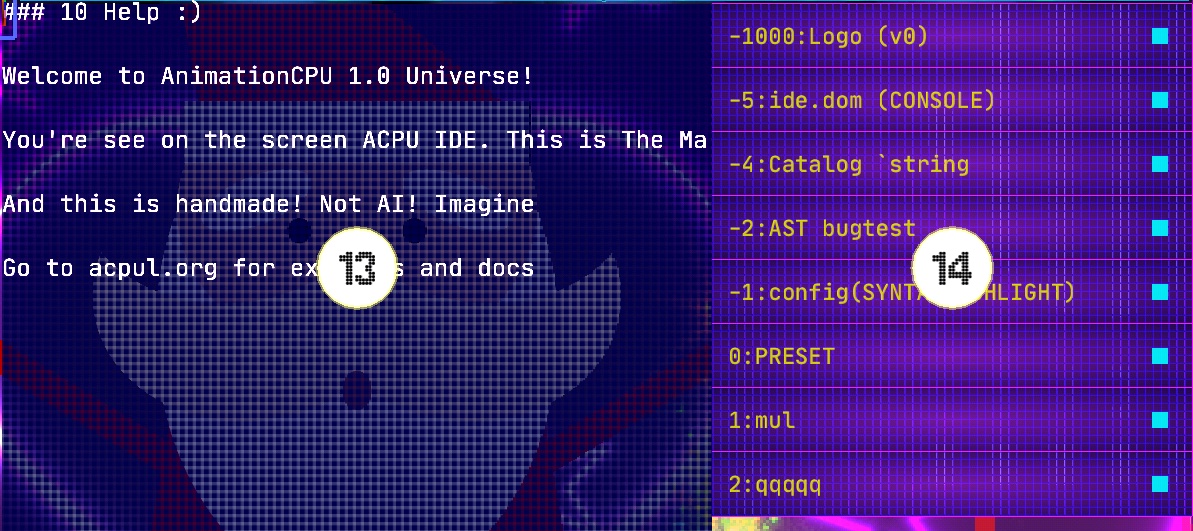
13. Code editor
Move cursor and edit the formula. You can use AWSD buttons for better accuracy than touching on symbols, but hardware keyboard is strongly preferred
14. Sources
List of formula sources
Chat
Try to a different inputs to find or run a formula

15. A bit avatar
Just a bit chatting avatar. He know just a few things like find file or run right now
16. Chat input
Ask your question here
17. Clear input button (X)
Clear input filed
18. Go/Search button
Go go go! Run your request
Utilities
21. Quick access menu
Quick
22. AWSD keyboard
Use AWSD keyboard to navigate cursor